
Introduction
Lag is one of the most common problems faced by PUBG Mobile and players. Specifically, it includes frame drops, game freezes, and input delays, all of which directly impact performance. According to surveys, nearly 55% of players regularly face lag issues and this affects both Android and iOS users. Therefore, we’ll show you the top 5 effective ways to fix lag and heating issues in PUBG Mobile on both Android and iOS.
Lag usually happens when your device struggles to load game resources or when you haven’t optimized the in-game settings properly.
Why Do Lag and Heating Problems Occur in PUBG Mobile?
Lag and overheating are frustrating because they ruin the smooth gameplay experience. These issues are mainly caused by two factors:
Internal Factors (Device-related)
- Exceeding storage capacity – If your device storage is over 80% full, it slows down and causes frame drops.
- Because of too many background apps – Running heavy or online-based apps consumes RAM and reduces performance.
External Factors (Game-related)
1 Unnecessary resource downloads, such as extra maps, themes, and packs, add extra load to your device.
2 Additionally, unoptimized graphics settings like setting graphics higher than your device can handle cause stuttering and overheating.
Example: Downloading resource packs loads enemy outfits, vehicle skins, and firearm effects. On lower-end devices, these visuals make the game lag significantly.
Top 5 Ways for iOS and Android For Lag Fix in PUBG Mobile.
1 Free Up Storage Space
Delete unnecessary files, apps, or large media.
Keep at least 40% storage free for smooth gaming.
Avoid filling your phone’s memory beyond 80%.
2 Limit Background Applications
Close all apps before launching PUBG Mobile/BGMI.
Uninstall or disable apps you don’t use, especially heavy social or gaming apps.
This ensures more RAM and CPU power is dedicated to the game.
3 Download Only Required Modes & Resources

Avoid downloading every event, map, or resource pack.
Example: World of Wonder (WOW) modes or unused maps consume space and slow performance.
Use the in-game “Clear” option to delete unused resource packs.
4 Optimize Graphics Settings
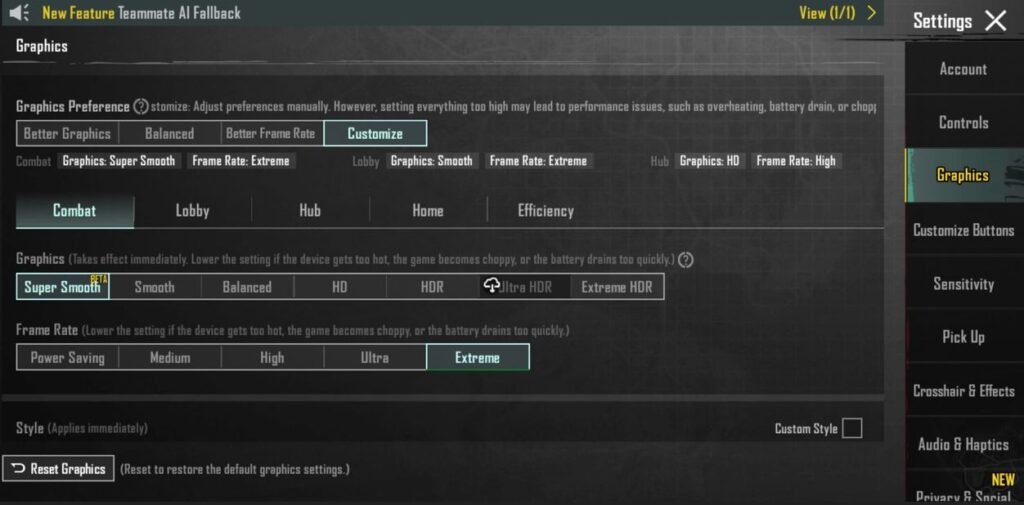
Proper graphics settings can reduce lag by up to 50%.
Recommended Graphics Settings:
- Android (4–8 GB RAM): Super Smooth + Ultra (40 FPS) or Extreme (60 FPS).
- iOS Devices: Super Smooth + Extreme/90 FPS (if available).
FPS Levels Explained:
Ultra = 40 FPS
Extreme = 60 FPS
90 FPS = 90 FPS
120 FPS = Coming soon on new devices
5 Use GFX Tool (For Low-End Devices)
For devices with 2–4 GB RAM, lag may still persist.
GFX Tools (available on Play Store) can unlock smoother graphics and stable FPS.
Note: Using third-party apps like GFX Tool is not officially allowed in PUBG Mobile and may risk to account. Use carefully and at your own risk.
Addition, you can read:
How to Unlock M416 glacier skin in PUBGM.
PUBG Mobile Competitive Gameplays: Full Guidance
Conclusion
Overall lag in PUBG Mobile is mainly caused by device limitations, background apps, unnecessary resources, or high graphics settings. To fix these issues, remember to:
- Free up storage space
- Limit background applications
- Download only essential resources
- Optimize graphics settings
- (Optional) Use GFX Tool for low-end devices
By following these top 5 lag and heating fixes, you can significantly improve performance and enjoy smooth, uninterrupted PUBG Mobile gameplay on both Android and iOS.